
1. Open the game through its normal address
Follow the Play link to open the full game on Meowdoku Web. The first visit needs a working internet connection to load the page, its scripts and the selected puzzle pack. Browser play means you do not install a separate application; it does not mean the game uses no memory or never needs the network. Keep the browser tab open while playing. The site does not provide a saved account-based session that follows you to another computer.
If a managed network shows a blocked-site message, that is not a puzzle error you can fix by changing marks. Ask the responsible administrator whether access is permitted, or wait until you are using an allowed device and network. We cannot promise that Meowdoku is unblocked at school or work, and we do not supply alternate proxy addresses to evade those restrictions. The same applies if the device blocks JavaScript or external websites. A browser’s ability to open other pages is useful evidence of connectivity, but it does not prove this particular site is permitted.

2. Use a suitable computer, Chromebook or phone
Use a current browser with JavaScript enabled. A Chromebook can use its normal browser and trackpad, keyboard or touch screen, depending on the device. A phone uses the same cell cycle as a computer; there is no mobile timing challenge or separate app to install. The responsive board keeps cells square and allows the page to scroll vertically. On a small screen, starting with a 6 × 6 board can make it easier to select cells accurately before trying a larger puzzle.
Managed Chromebooks may have browser or website settings you cannot change. Respect those controls rather than treating them as missing game features. The site’s desktop and simulated narrow-screen checks do not certify every Chromebook, phone or old browser. If the layout is hard to read, use normal browser zoom or change device orientation; do not assume every larger puzzle must fit above the fold. A successful first load should show a colored board and the progress controls. If you see only an incomplete page, continue with the loading checks below instead of repeatedly changing difficulty.
3. Learn one control scheme for mouse and touch
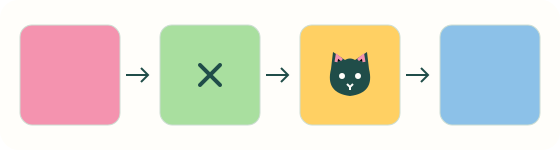
Click or tap a cell to cycle through empty → X → Cat → empty. There is no drag-to-place requirement, and you do not have to tap twice within a time window. Each action can be undone separately. A focused cell also responds to Enter or Space; Shift+Enter directly places or removes a Cat. In Play, Z or Ctrl/Cmd+Z undoes a move when you are not typing into an input field. These controls let you alternate between a trackpad and keyboard without learning a second game.
Choose board size and difficulty before settling into a puzzle. Changing mode resets marks, elapsed time and hint count. Restart stays on the current puzzle; New puzzle draws another one. A hint is a corner preview that you can inspect before making the move yourself. Keep confirmed Cats and speculative marks distinct in your reasoning. When you need a reminder of the three placement rules, the How to Play guide has a diagram and a checked first move, while Strategy covers more involved eliminations.
In Play and Daily, light automatic X marks show cells ruled out by placed Cats in the same row, column or colored region, or any of the eight neighboring cells. They do not change your marks, Undo history, hint count or saved data. Click, tap, Enter or Space on an automatic X places a Cat directly; Undo returns to the automatic X while the exclusion still applies. Your own X stays darker. Removing a Cat or disabling Rule assist removes only automatic X marks. A cell without one is not guaranteed to fit the whole solution. Small bottom-right marks remain hint previews.
4. Check a failed load without losing sight of your progress
If the board does not appear, first check whether the browser reports a network or policy error. Confirm that you opened the normal HTTPS address and that the device has a usable connection. If allowed, try the same address in a current browser. Do not disable school or company security settings to run a game. A restrictive environment may allow the HTML page but block a script or puzzle resource, which can leave the screen looking unfinished. The error message is more useful than repeatedly clicking an empty board.
When a selected puzzle pack fails to load, Play keeps the current puzzle and provides a retry instead of pretending the new mode succeeded. Retry once your connection is working. A page refresh starts a new visit and does not preserve the current attempt, so do it only after accepting that loss of marks and time. There is no promise of offline continuation across refreshes, a saved streak or cloud synchronization. If you still cannot load the game on an allowed network, describe your browser, device and error through the Contact page. Avoid sending private workplace information or screenshots that reveal unrelated personal details.
5. Understand browser processing and access privacy
Play runs the game logic in your browser and does not require a login. This does not make browsing invisible: the hosting provider handles page requests, and a managed network may record allowed or blocked traffic under its own policies. Read the Privacy page for the site’s current data-handling explanation rather than assuming that no account means no technical request data. Being free to start a puzzle is also different from having permission to play it during school or working time.
If you use the screenshot Solver later, review the image before selecting it. Detection and solving happen locally; a homepage upload may temporarily pass the image to Solver through one-time browser storage. That record is read and removed, and expired records are cleaned up. The screenshot is not sent to a Meowdoku Web application server for recognition. You still need to confirm regions, uncertain symbols and whether visible marks are your Current attempt or fixed clues. The browser interface cannot guarantee privacy from someone who shares your screen or manages your device. Use the Privacy and Contact pages for further questions, and use Play for ordinary practice without a screenshot.